
Tags & Blur
TAGS
In the player, select the “Tags” menu from the sidebar.
Click “N” to create a new Tag.
Name the Tag and configure it as desired.

Change the Tag Image
- Under the “Content” section, click “Change Content”.
- Use an icon available in the library or upload a custom image.
Save.
Configure the Tag Interaction
Under the “Interaction” section, click “Edit Interaction”.
Choose the interaction type:
- Go to View (Allows you to create “jump-to” navigation between floor plans for easier navigation.)
- Open Link (Allows you to open a file or website through a URL link.)
To open a file, it is important to upload it in the “CONTENT” section when accessing the Tag content files.
- Display Dialog Box (Allows you to display text or an image in a popup dialog box.)
-
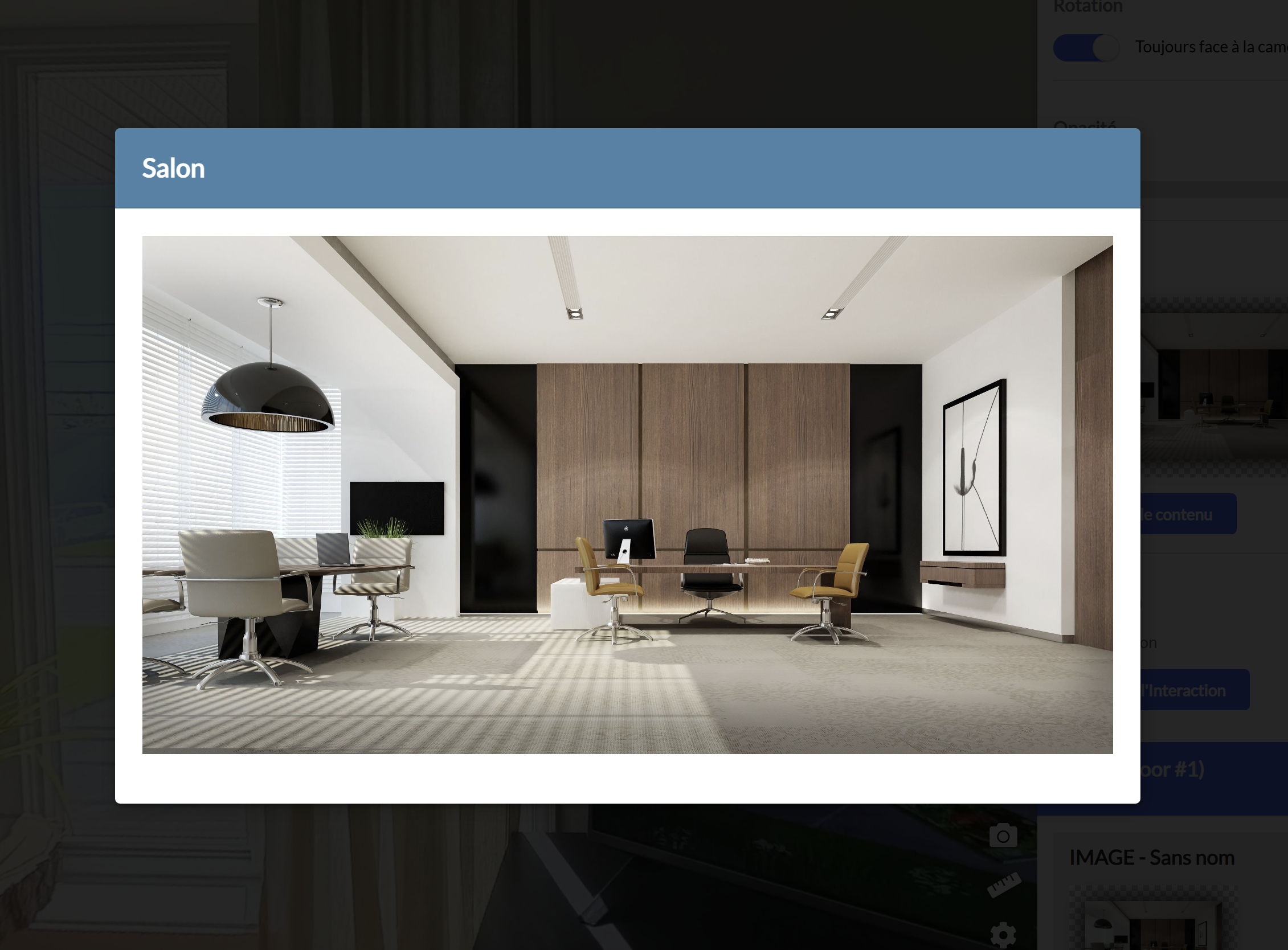 Display Tooltip (Allows you to display text or an image through a hover thumbnail.)
 Display Tooltip (Allows you to display text or an image through a hover thumbnail.)
BLURRING
In the player, select the “Blur” menu from the sidebar.
Simply click and draw over the area you want to blur, as you would with a pencil tool.
Remove blur areas from a pano if needed.
Save
